Kafka Connect
What is Kafka Connect
Kafka Connect is a framework for moving data between Kafka and external systems using connectors. It standardizes ingestion (source connectors) and export (sink connectors) so you can build pipelines without writing custom consumers or producers.
Common uses: - Load data from databases or SaaS apps into Kafka. - Stream Kafka topics to data warehouses, object storage, or search systems. - Keep external systems in sync with Kafka topics.
Kafka Connect in AxonOps
AxonOps integrates with your Kafka Connect REST endpoints through the agent. Once configured, you can manage your entire Connect deployment from the AxonOps UI.
Connect overview
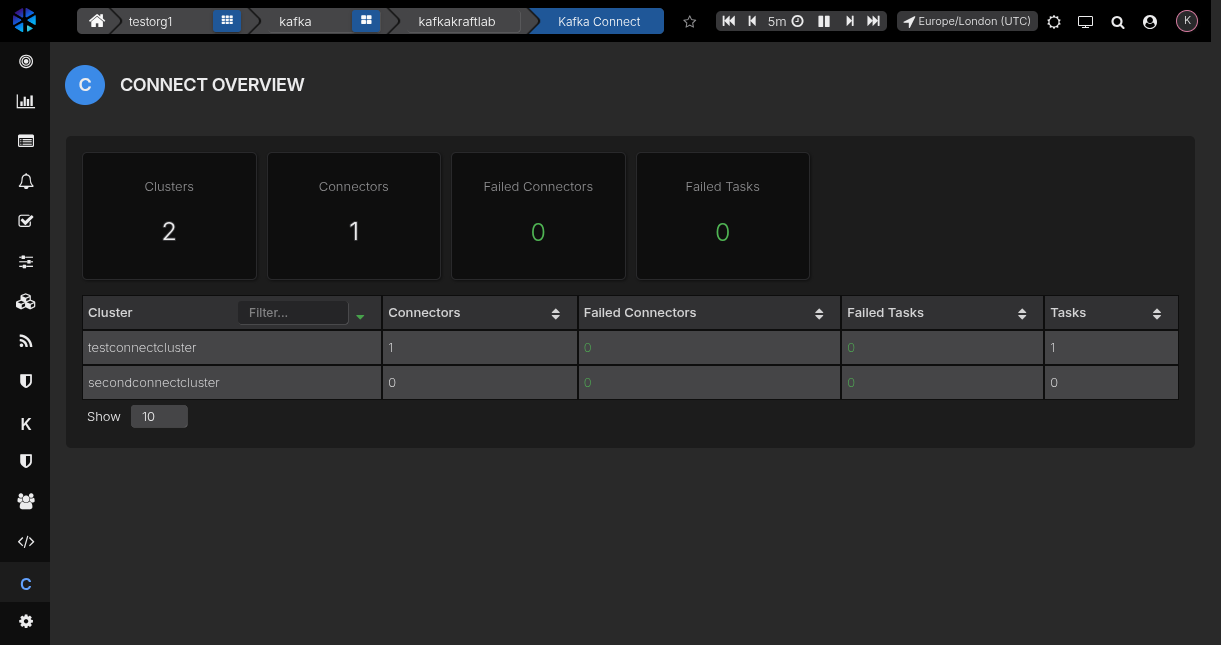
The Connect overview page provides a summary of all your Connect clusters at a glance. Summary cards show the total number of Clusters, Connectors, Failed Connectors, and Failed Tasks across your deployment.
Below the summary cards, a table lists each Connect cluster with its connector and task counts. You can filter clusters by name and sort by any column. Click on a cluster row to drill into its details.
Cluster detail
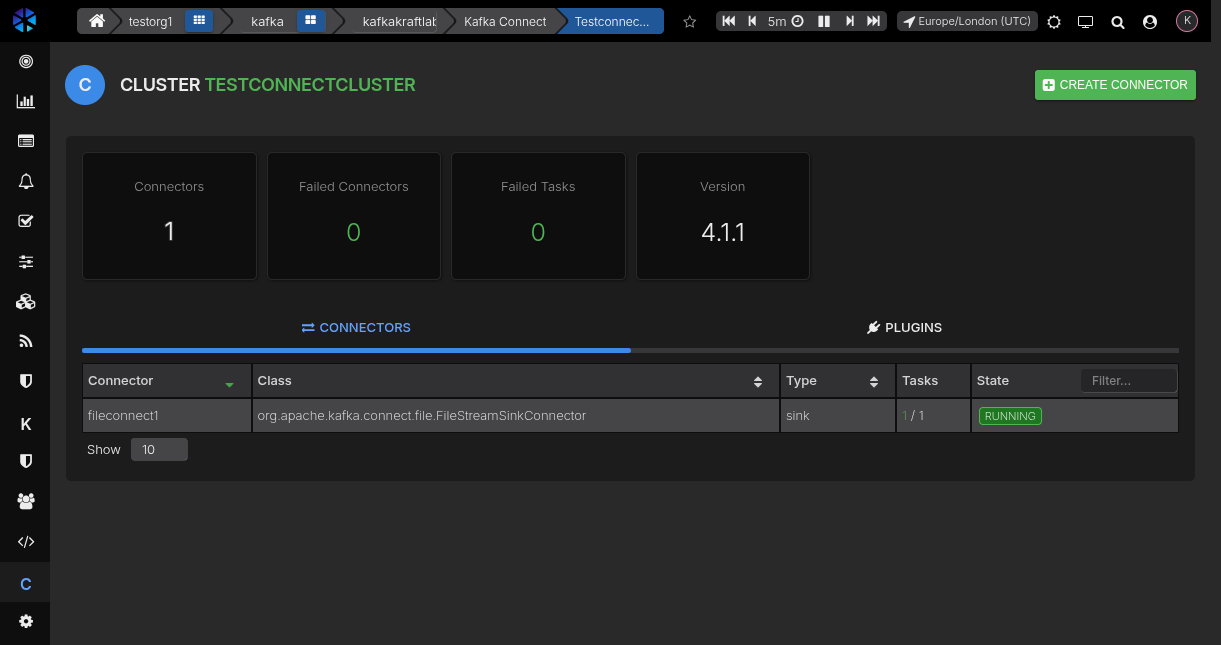
Clicking a cluster opens the cluster detail view. Summary cards show the cluster-level Connectors count, Failed Connectors, Failed Tasks, and the Connect Version.
The view has two tabs:
Connectors — Lists all connectors deployed to the cluster. Each row shows the connector name, class, type (source or sink), running tasks ratio and current state. You can filter by state and sort by any column. Click a connector row to view its full details.
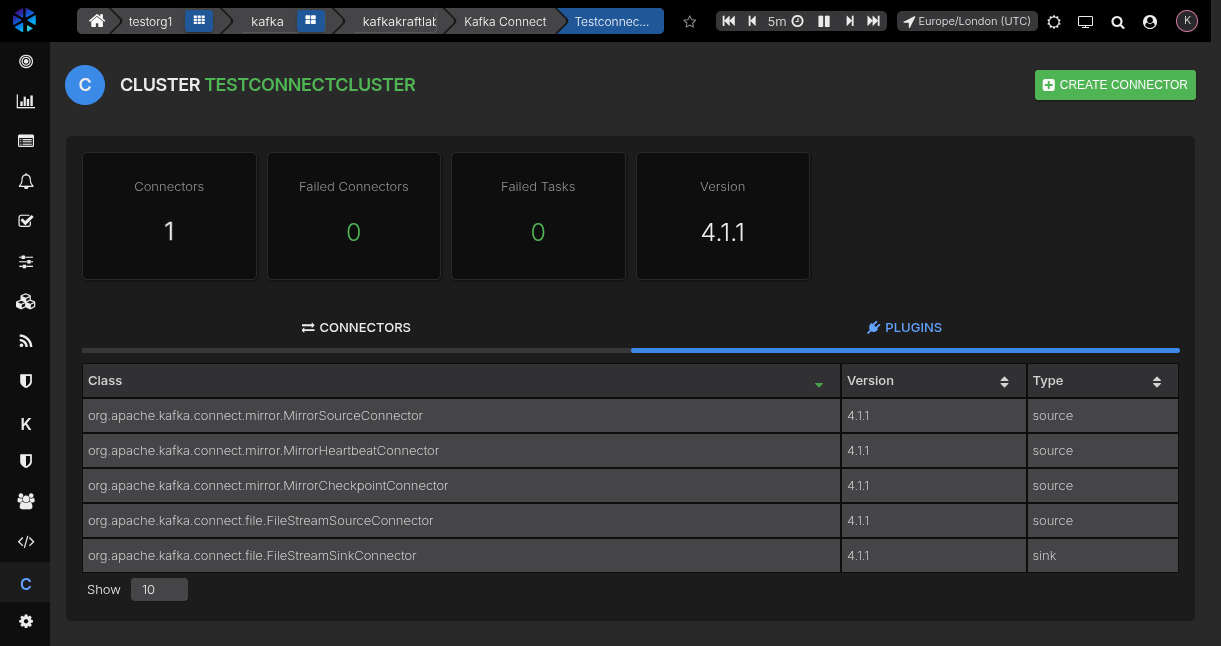
Plugins — Lists all connector plugins available on the cluster, showing the fully-qualified class name, version, and type (source or sink).
Connector detail
Selecting a connector opens the connector detail view. The header displays the connector name and its current state (e.g. RUNNING).
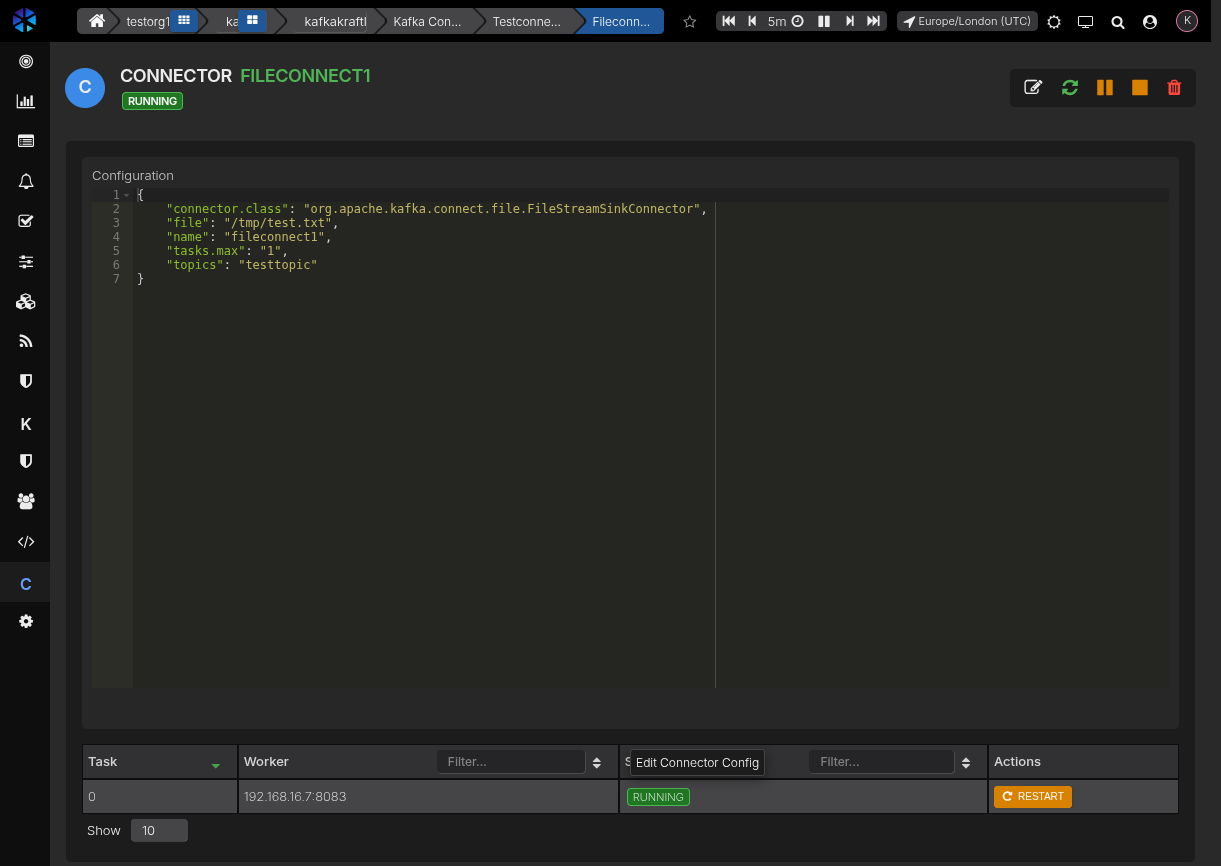
The page is divided into three sections:
Configuration — A JSON editor showing the connector's current configuration. Click the Edit icon in the toolbar to modify and save changes.
Tasks — A table listing each task with its ID, assigned worker address, current status, and a Restart button to restart individual tasks.
Connector lifecycle actions
The connector toolbar provides the following actions:
| Icon | Action | Description |
|---|---|---|
| Edit | Open the configuration editor to update the connector | |
| Restart | Restart the connector and all its tasks | |
| Pause | Pause the connector — tasks stop processing but are not removed | |
| Stop | Stop the connector — tasks are shut down | |
| Delete | Permanently remove the connector from the cluster |
Individual tasks can be restarted from the Tasks table using the per-task Restart button.
Creating a connector
Click the Create Connector button on the cluster detail page to open the creation dialog.
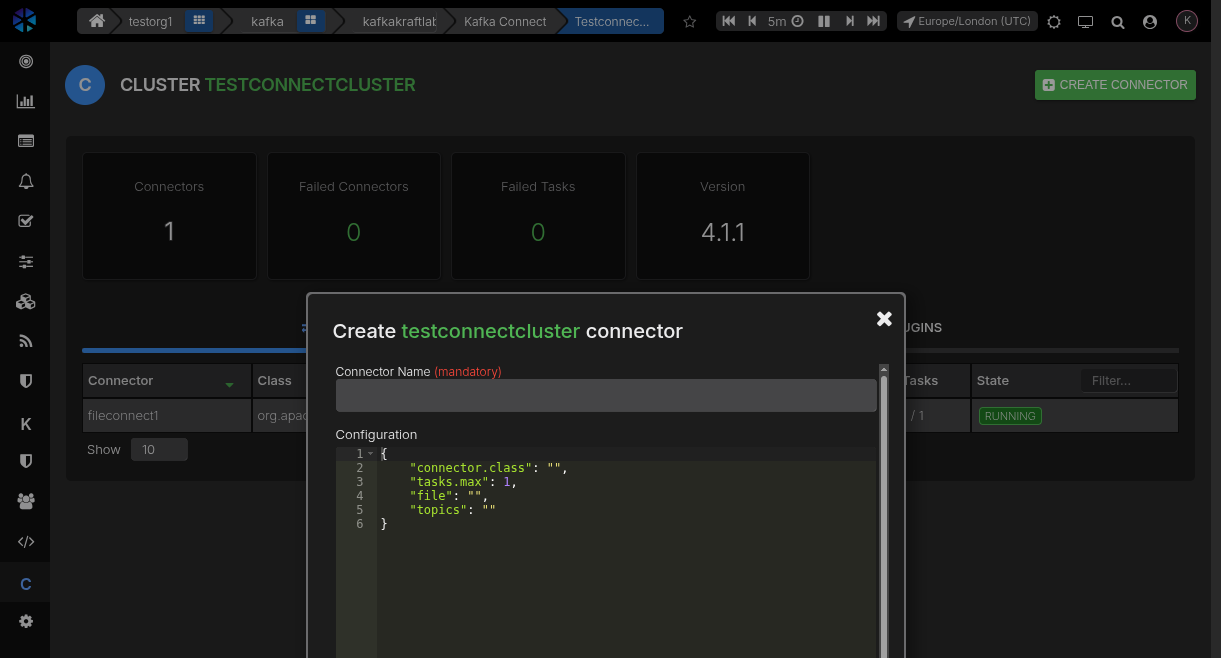
Provide:
- Connector Name (mandatory) — A unique name for the connector.
- Configuration — A JSON payload specifying the connector class and its settings. The editor is pre-populated with a template.
Click Create Connector to deploy it to the cluster.
Configure Kafka Connect access
Enable the Connect client in the agent configuration and define one or more clusters.
YAML configuration
kafka:
  connect_client:
    enabled: true
    connectTimeout: 5s
    readTimeout: 5s
    requestTimeout: 5s
    clusters:
      - name: "connect-prod"
        url: "https://connect.example.com:8083"
        username: "connect_user"
        password: "connect_password"
        tls:
          enabled: true
          caFilepath: "/etc/ssl/certs/ca.pem"
          certFilepath: "/etc/ssl/certs/client.pem"
          keyFilepath: "/etc/ssl/private/client.key"
          insecureSkipTlsVerify: false
Notes:
clustersis a list;nameis used to target a specific Connect cluster.usernameandpasswordenable HTTP basic auth.tokenis supported in config files if your Connect endpoint uses token auth.- TLS settings are optional; if disabled, TLS 1.2+ is still enforced by the client.
Environment variables
You can configure a single cluster via environment variables:
CONNECT_CLIENT_ENABLED=true
CONNECT_CLIENT_CONNECT_TIMEOUT=5s
CONNECT_CLIENT_READ_TIMEOUT=5s
CONNECT_CLIENT_REQUEST_TIMEOUT=5s

CONNECT_CLIENT_CLUSTER_NAME=connect-prod
CONNECT_CLIENT_CLUSTER_URL=https://connect.example.com:8083
CONNECT_CLIENT_CLUSTER_USERNAME=connect_user
CONNECT_CLIENT_CLUSTER_PASSWORD=connect_password

CONNECT_CLIENT_CLUSTER_TLS_ENABLED=true
CONNECT_CLIENT_CLUSTER_TLS_CAFILEPATH=/etc/ssl/certs/ca.pem
CONNECT_CLIENT_CLUSTER_TLS_CERTFILEPATH=/etc/ssl/certs/client.pem
CONNECT_CLIENT_CLUSTER_TLS_KEYFILEPATH=/etc/ssl/private/client.key
CONNECT_CLIENT_CLUSTER_TLS_VERIFY_ENABLED=false
Note on TLS verification: CONNECT_CLIENT_CLUSTER_TLS_VERIFY_ENABLED maps to the insecureSkipTlsVerify field.
When set to true, certificate verification is skipped.
Troubleshooting
If you see no clusters or connectors:
- Confirm CONNECT_CLIENT_ENABLED=true (or connect_client.enabled: true).
- Verify the url is reachable from the agent host.
- Confirm TLS certificates and paths are valid.
- Check credentials if basic auth is required.