Set up alert rules
Create an alert rule
On the AxonOps application menu, click Dashboards and select the required dashboard (e.g., System).
Hover over the desired chart and click  .
.
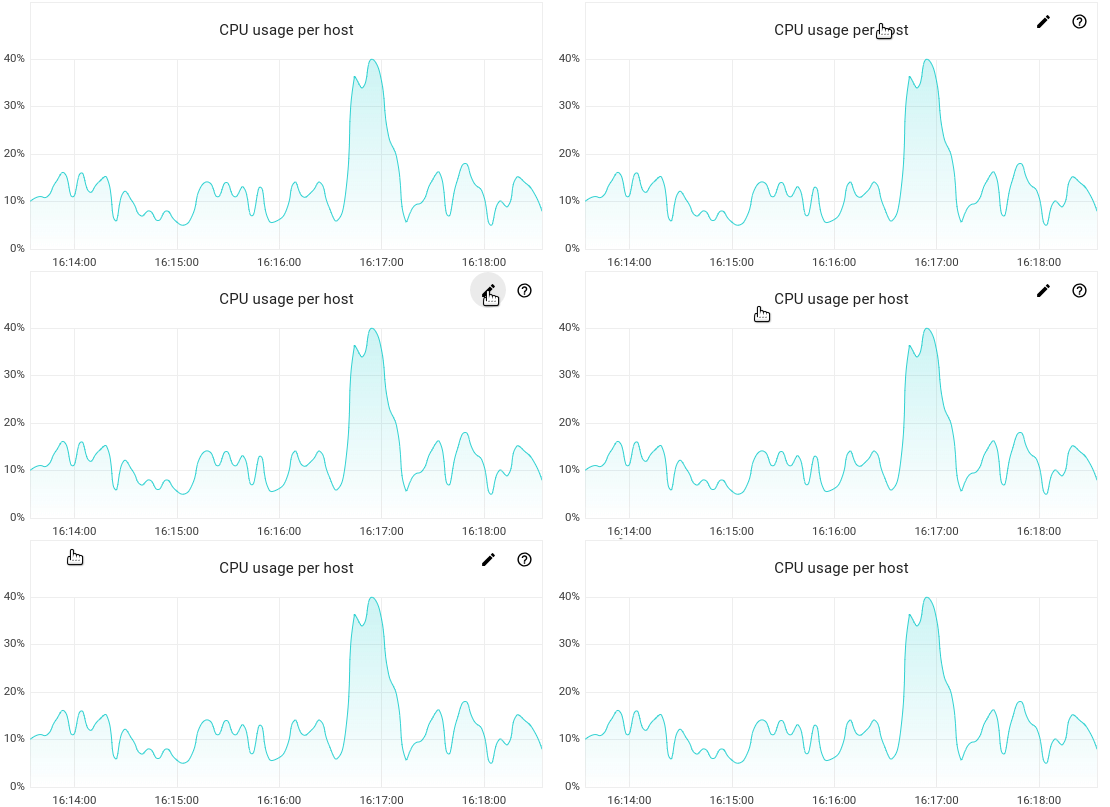
Complete the form fields
- Below the chart, click the Alert tab.
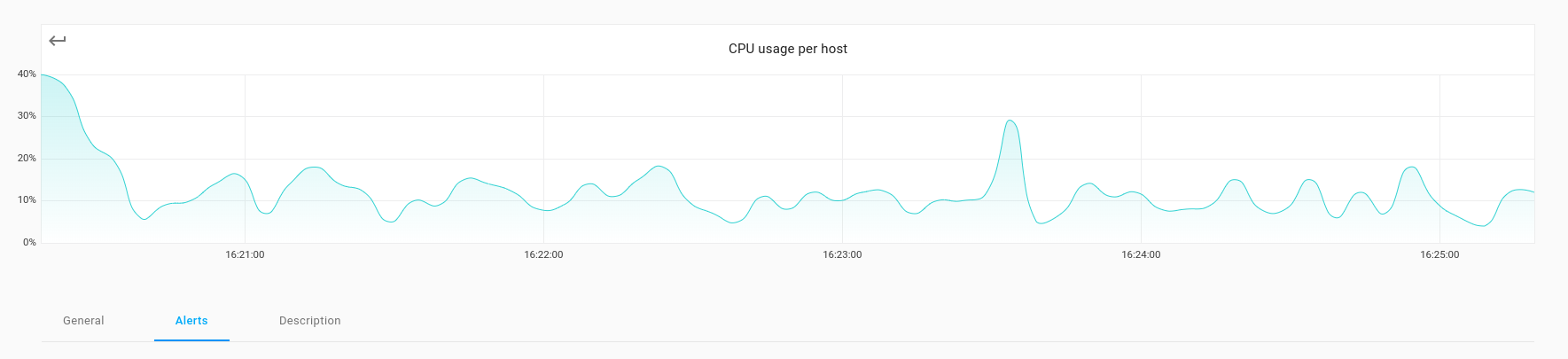
- A form will appear.
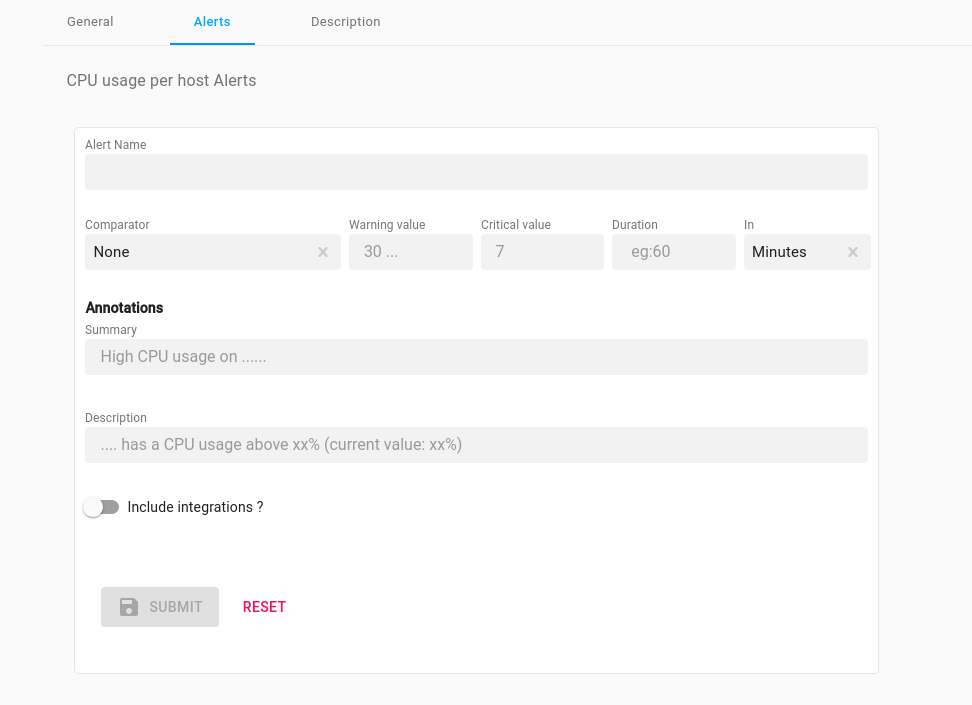
- Complete the alert settings by setting Comparator Warning value and/or Critical value, and the Duration (how often to check).

Annotations
In the Summary box, you can include free text and one or more of the following $labels:
$labels:
   - cluster
   - dc
   - hostname
   - org
   - rack
   - type
   - keyspace
$value:
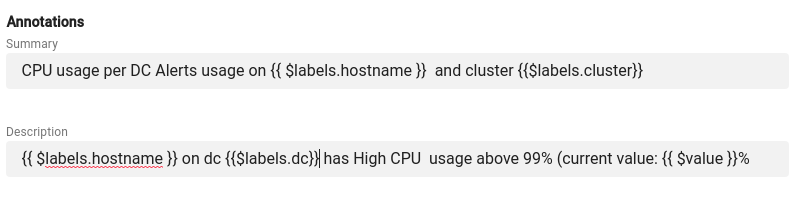
In the Description box, you can include free text along with one or more of the above $labels.
Example
CPU usage per DC Alerts usage on {{ $labels.hostname }} and cluster {{$labels.cluster}}
Integrations
-
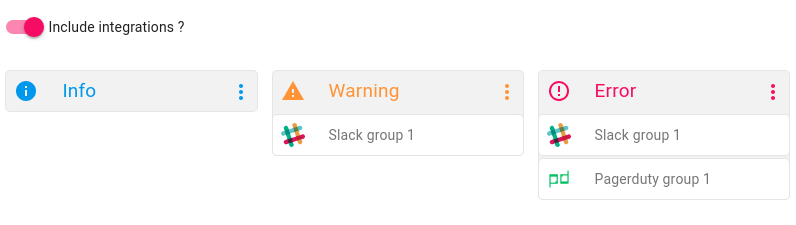
Using the slider bar
 you can select any Integrations.
Then click the Info, Warning, and Error icons to select the group(s) of Integrations for the alert.

Not selecting integrations
If you do not select any specific Integrations, the alert automatically follows Global Dashboard Routing. If this has not been set up, it uses Default Routing.
Edit Alert Rule
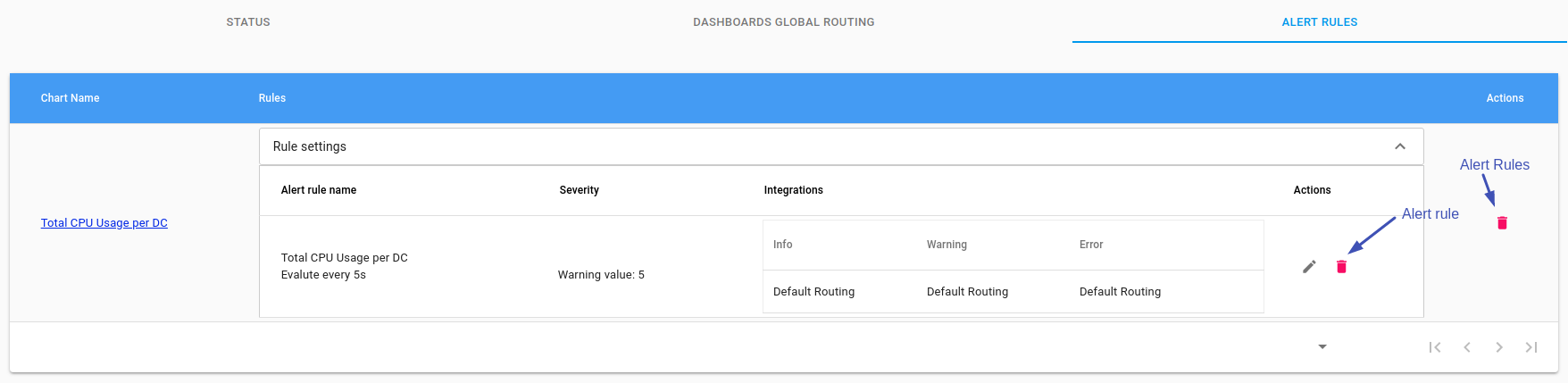
On the AxonOps application menu, click Alerts & Notifications, select Active, then select the Alert Rules tab and click  .
.

Delete Alert Rule(s)
To delete an alert, either:
- On the AxonOps application menu, click Dashboards and select the required dashboard (e.g., System). Hover over the desired chart and click . Below the chart, click the Alert tab and click
 on the alert rule you want to remove.
OR...
- On the AxonOps application menu, click Alerts & Notifications, select Active, then select the Alert Rules tab and click .