Requirements
- Make sure the Cassandra service is stopped on every node in the cluster/data center (DC).
- Make sure the Cassandra commitlog directory is emptied for every node you want to restore to.
- Check that Cassandra application keyspace table directories are emptied for every node and keyspace/table you want to restore.
Steps
In the AxonOps Dashboard on the left-hand menu, navigate to Operations > Restore.
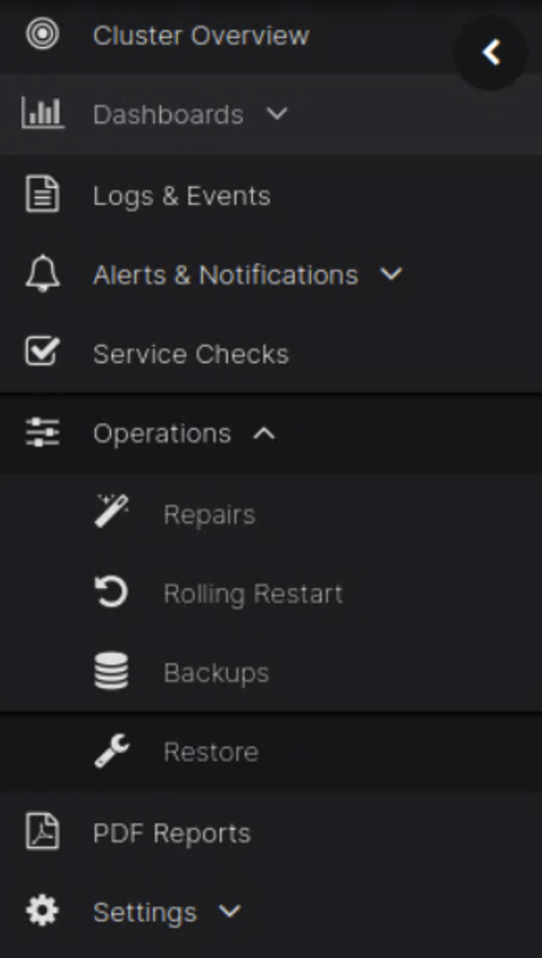
On the top tab, select Point-in-Time Recovery.

You will be presented with the point-in-time restore screen. There are several steps to complete a point-in-time restore.
Step 1: Select restore point-in-time
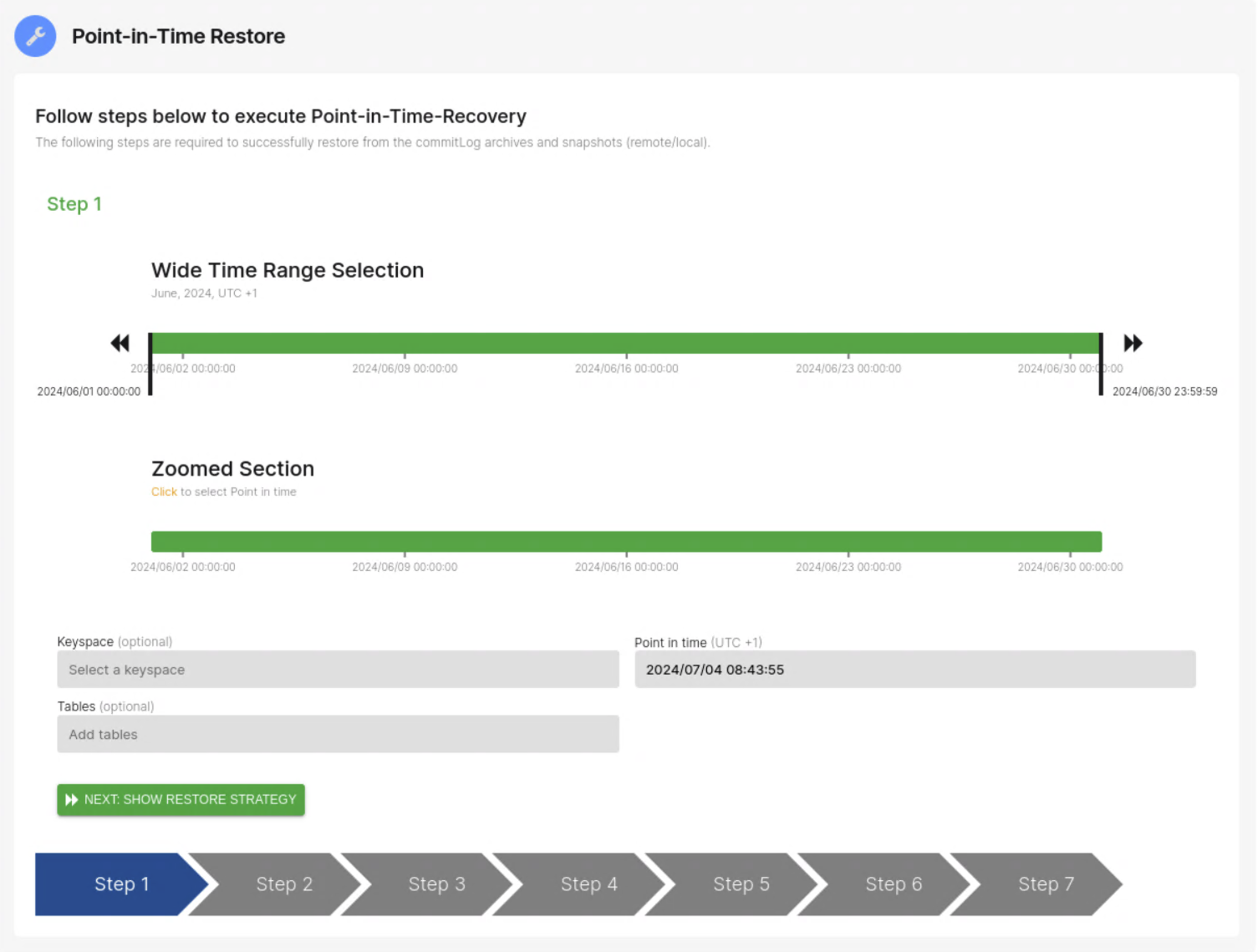
Select the point in time you want to restore your cluster to.
Complete the date/time selection and the keyspace and table fields you want to restore.
-
Wide Time Range
The wide time range is always a calendar month from the 1st to the last day of the selected month.
To select a different month please use the
 and
and  arrows on either side of the slider.
At the beginning and end of the Wide Time Range slider there is a black bar that you can slide left and right to narrow the Date/Time of when you want to restore to.
-
Zoomed Section
This is a narrower view of the wide selection in the above slider.
By default if the Wide Time Range slider is 30 days the Zoomed Section will be 30 days.
The narrower the time range in the Wide Time Range slider, the more precise the available date/time selection will be in the Zoomed section.
Example of what the Zoomed section will look like when snapshots are available to select for PITR.

The Camera icon represents a snapshot at a point in time where a commitlog is archived.
-
Point in time
A text-based representation of the selection made in the Zoomed section slider. This is an alternative if you want to manually input a specific time.
-
Keyspace(optional)
The application or system keyspaces that were included as part of the commitlog archive process. If you do not specify a keyspace, all keyspaces are included in the restore process.
-
Tables(optional)
The application or system tables that were included as part of the commitlog archive process. If you do not specify a table, all tables are included in the restore process.
Step 2: Overview of point-in-time nodes, keyspaces, and tables
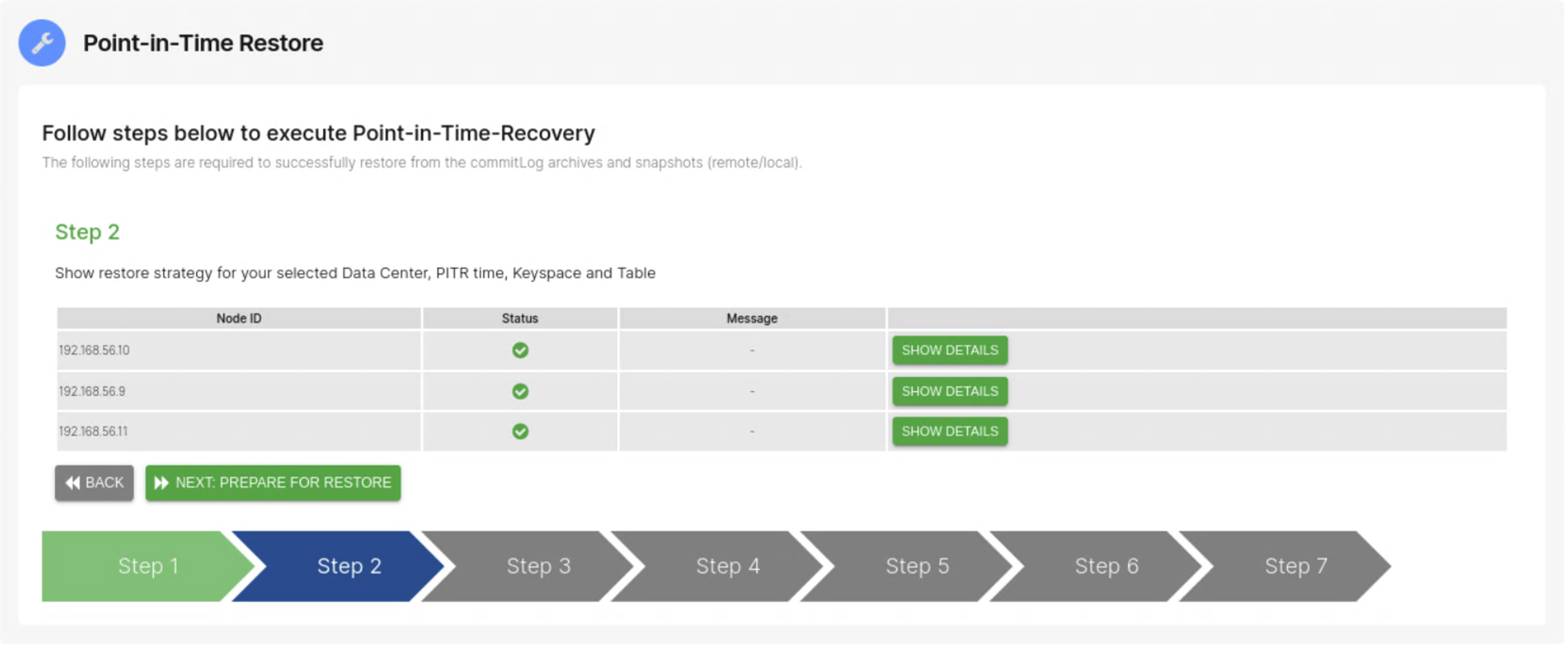
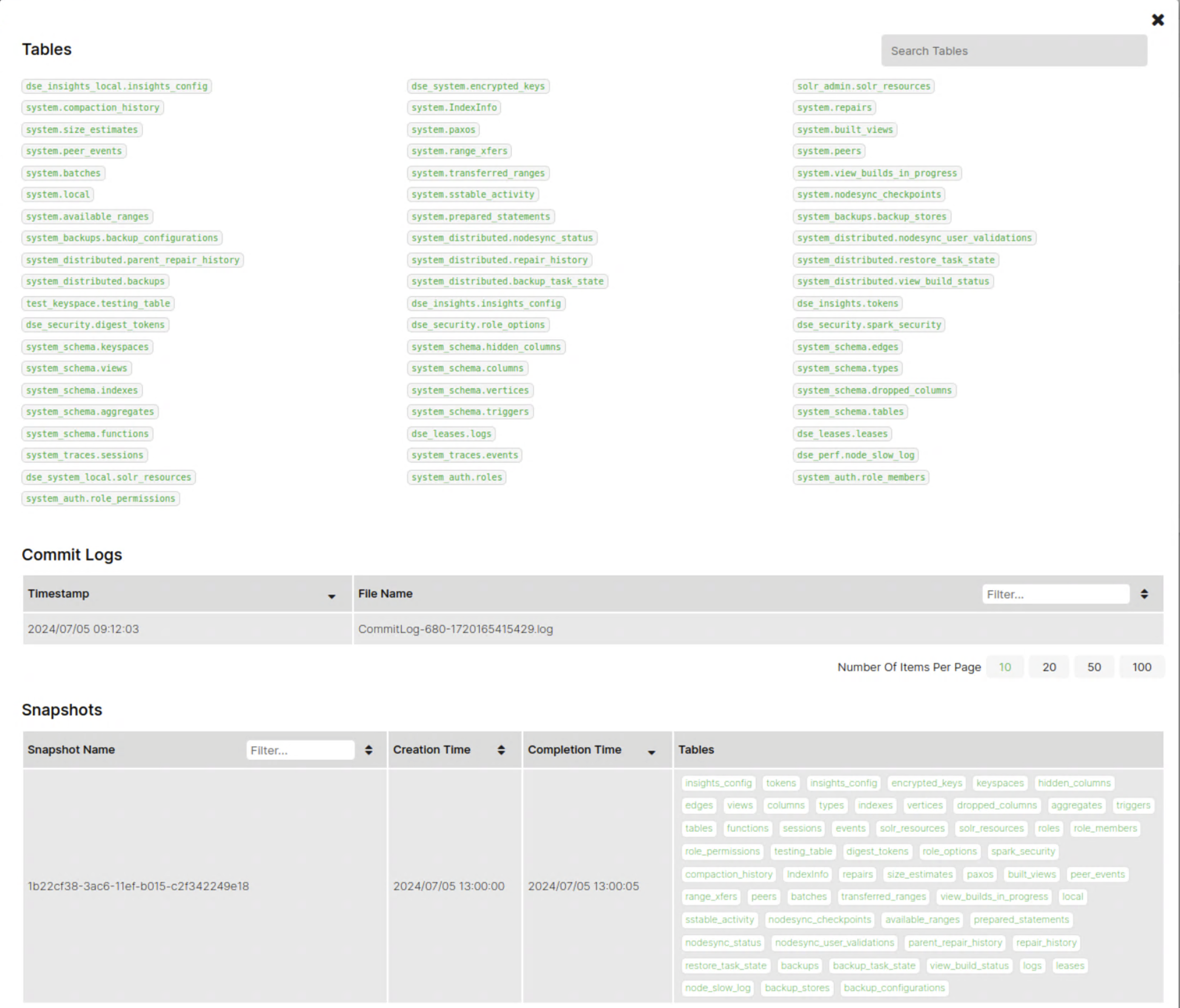
Click Show details to confirm that all the tables and keyspaces you want to restore are included. You will be presented with the following screen.
-
Tables
Tables to be restored are highlighted in green, and excluded tables are greyed out. The search box lets you confirm which tables or keyspaces will be restored.
-
Commit Logs
The last timestamp and file name of the commit log that will be used to recover to the specified point-in-time.
-
Snapshots
The Snapshot/s that will be used to recover to the specified point-in-time
Step 3: Confirm point-in-time restore
Confirm you are ready to start the point-in-time restore.
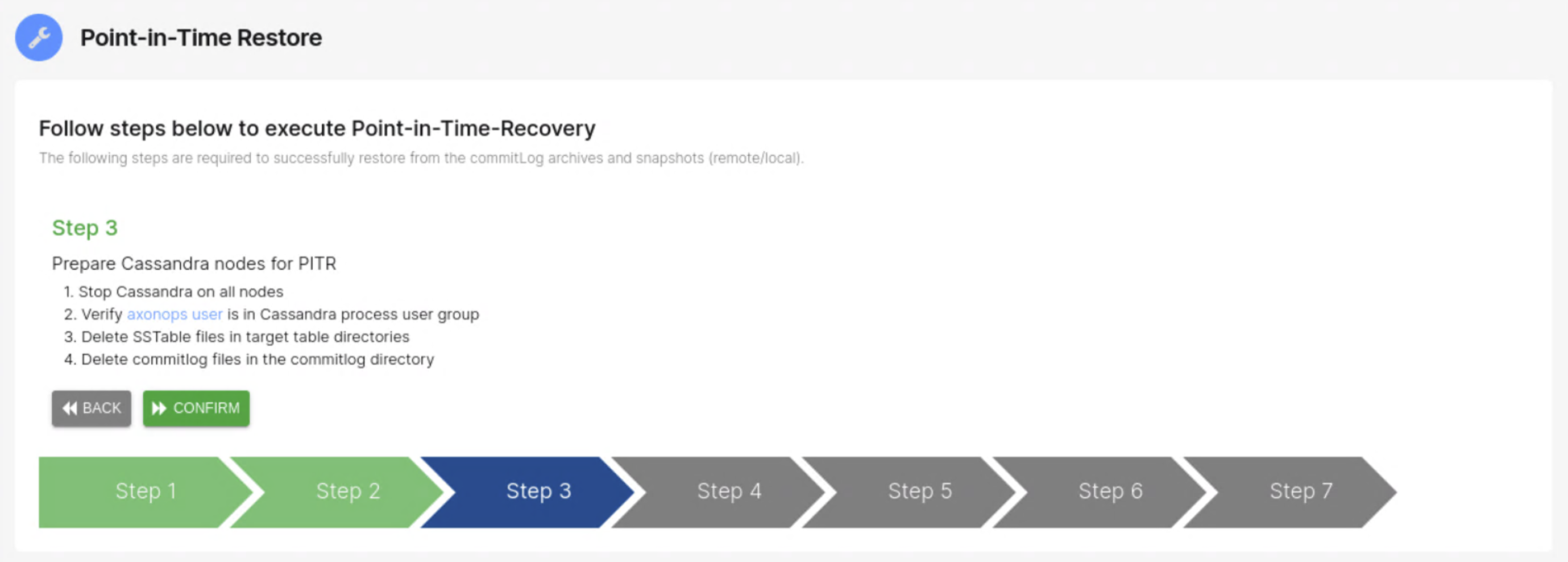
- Stop Cassandra on the nodes that need to be restored.
- Delete the SSTable files in the target table directories.
- Delete commitlog files in the commitlog directory
Step 4: Final checks before restore starts
The AxonOps agent confirms the Cassandra nodes are stopped and checks that the cluster is ready for the point-in-time restore.
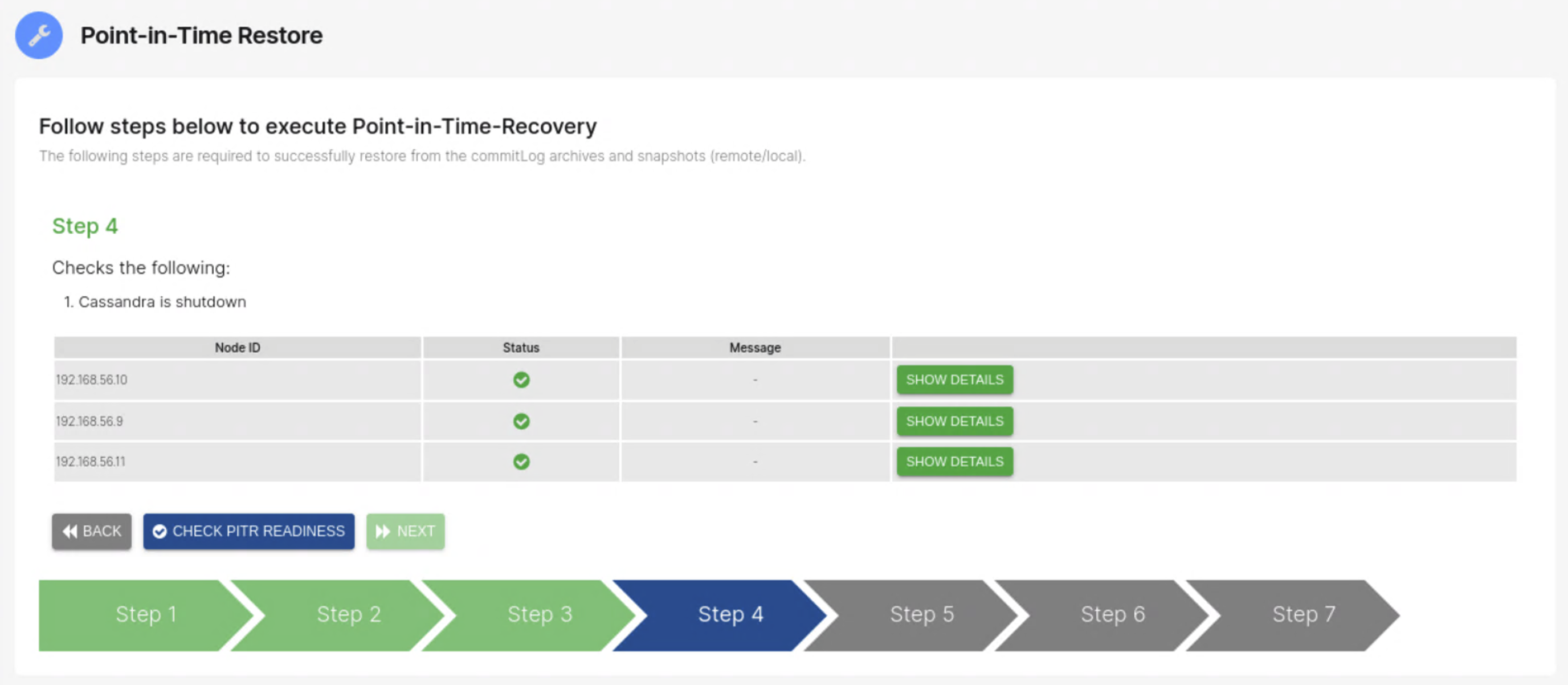
Once you have clicked Check PITR Readiness, it will confirm that the cluster is in the correct state for recovery to proceed.
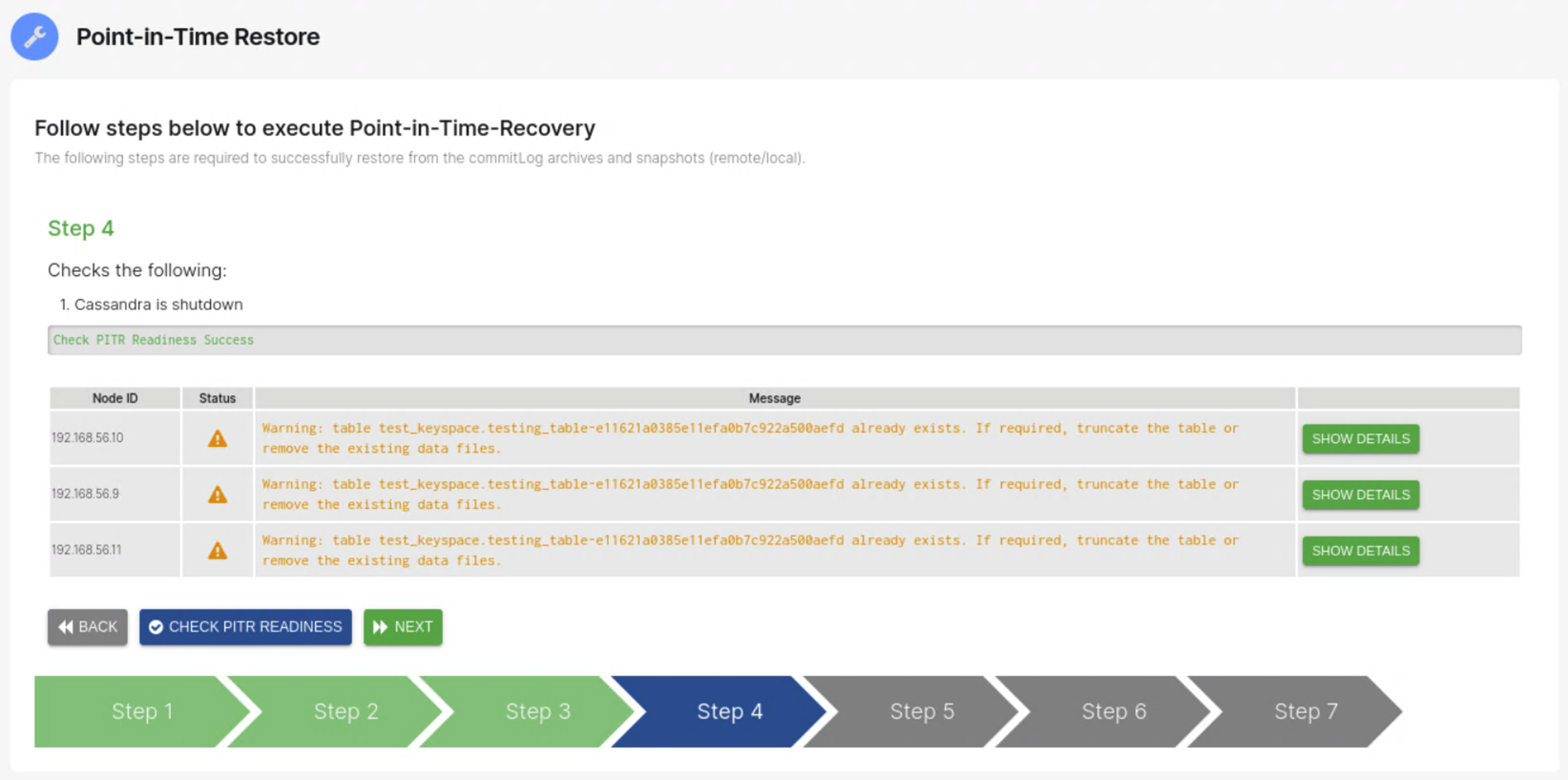
If any of the data directories still contain SSTables, a warning may be displayed.
Click Show details to view affected tables and any errors or warnings.
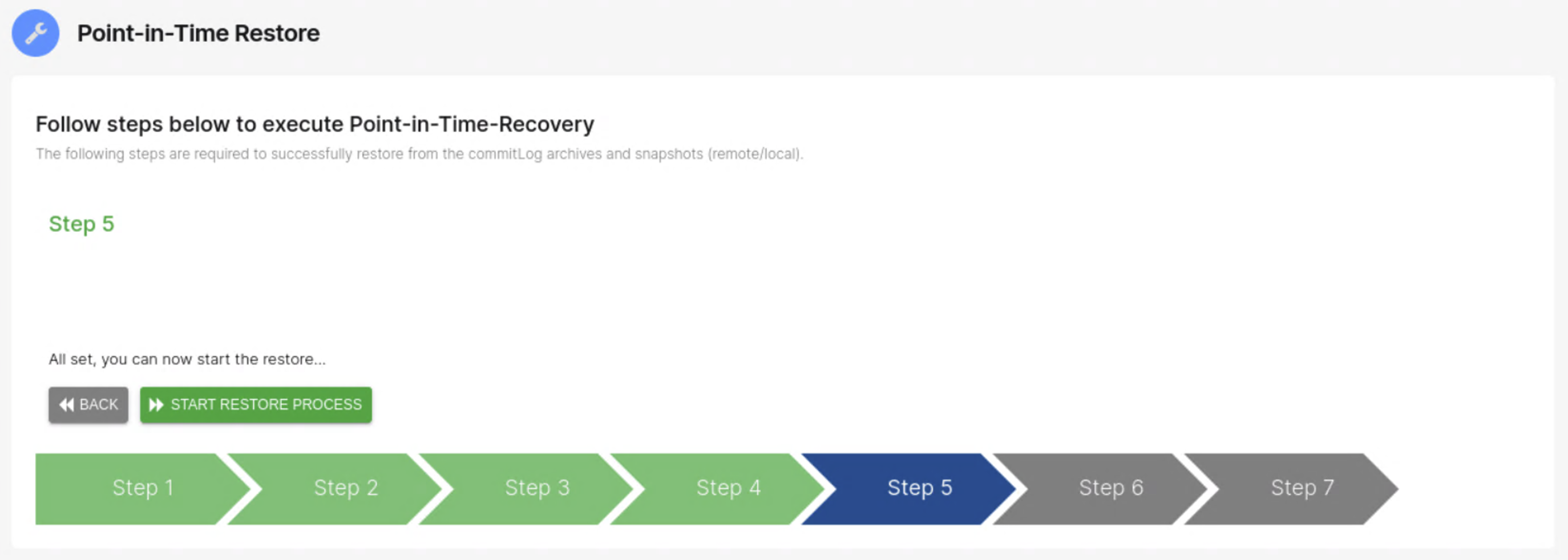
Step 5: Start the point-in-time restore
Start the restore process.
Step 6: Wait for completion and start Cassandra nodes
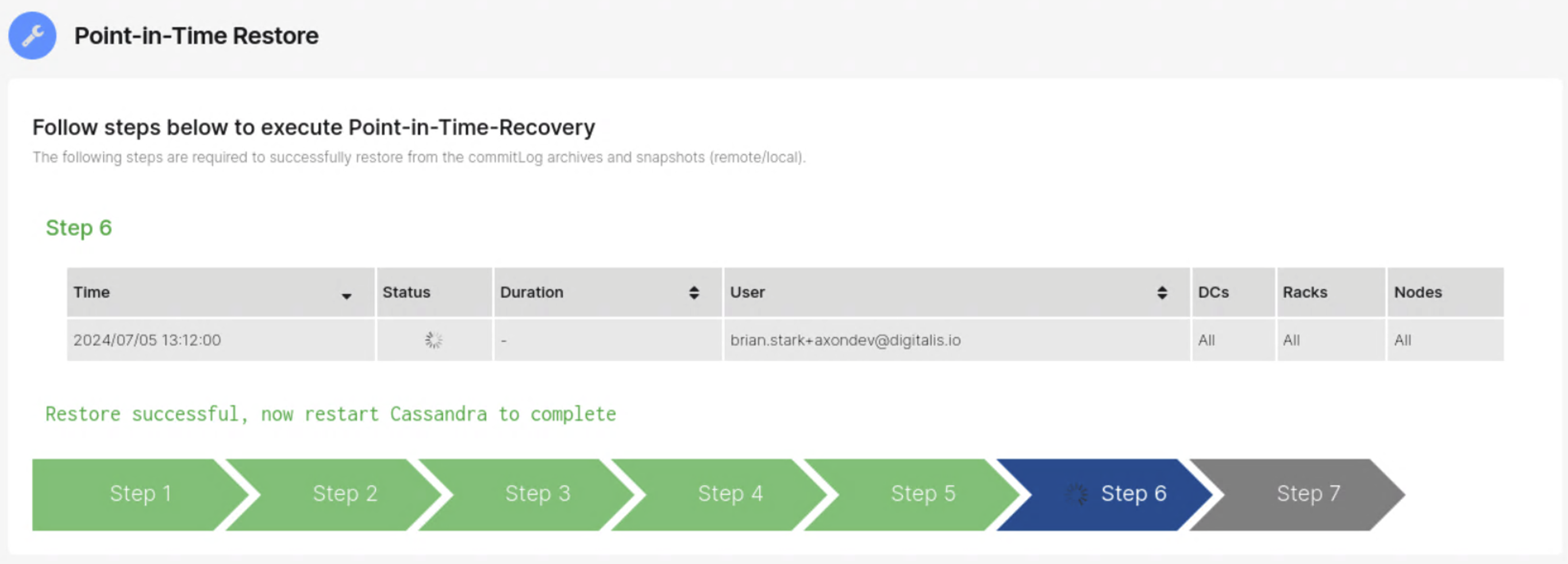
This status page shows the point-in-time restore process. Once the restore has completed, the status remains in a progressing state until the Cassandra nodes are restarted.
Step 7: Verify restored data
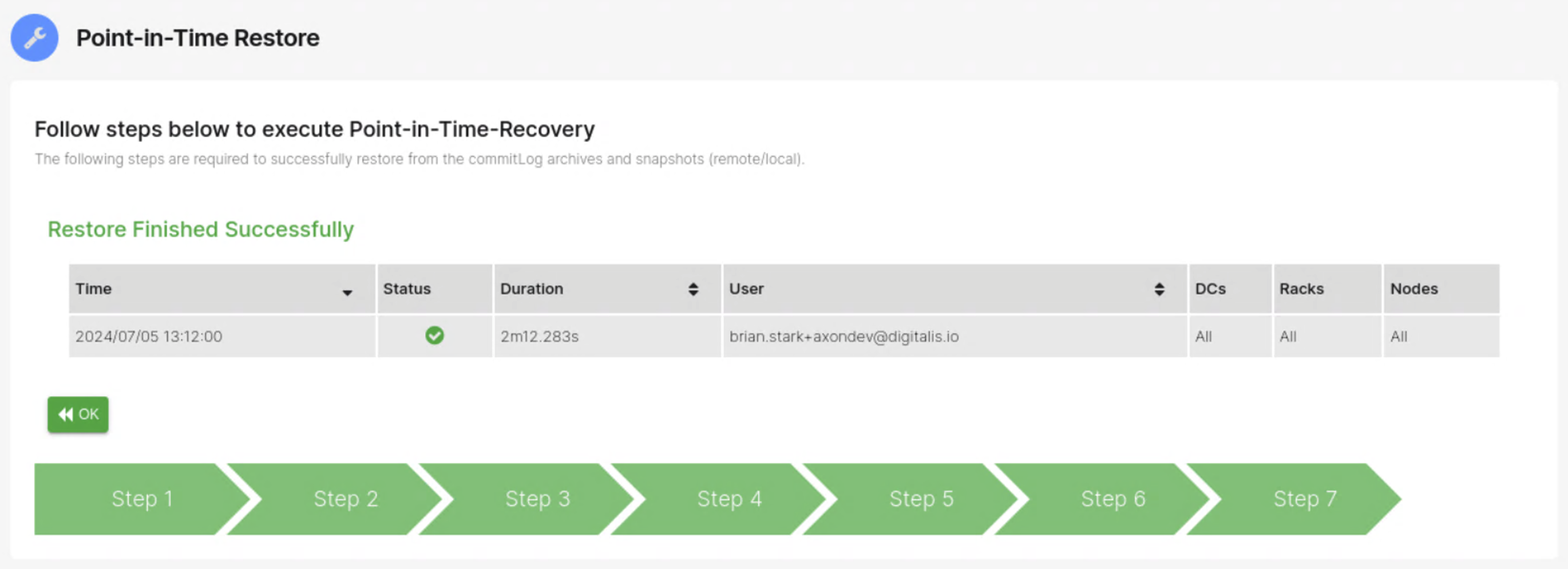
Successful point-in-time restore. Confirm that the restored tables contain the expected data.